Add the people you split bills with as friends. Bills you split with them then arrive in their Panda Money, with your payment QR ready to scan, and they can tell you they've paid from the app.
Add a friend
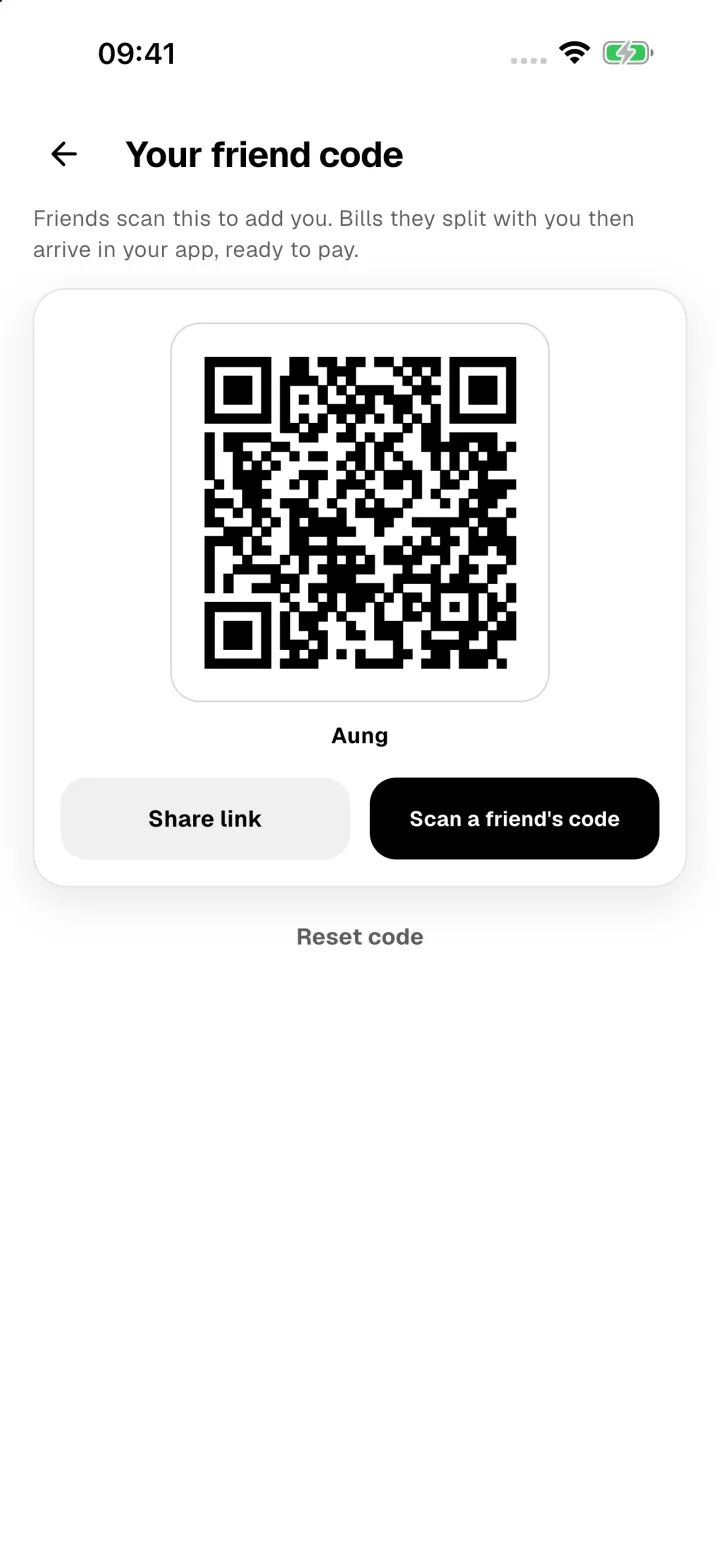
- Open Profile → People and tap the QR icon at the top.
- Your friend scans your code, or you tap Scan a friend's code and scan theirs. You can also tap Share link and send it.
- Choose who they are: one of your saved people, or a new person. Tap Add friend.
Adding is instant. Your friend gets a notification and can remove or block you at any time.
People
Friends are listed at the top of People, with a Linked badge. Tap someone to rename them, mute their notifications, unlink them or block them. Unlinking keeps any bill you already sent with them until it's paid.

Split a bill with a friend
Split the bill as usual (see Split a bill) and pick your friend under the people on it. When you save, their share goes straight to their app and they get a notification. If you change their share later, they're told the new amount.
When a friend splits a bill with you
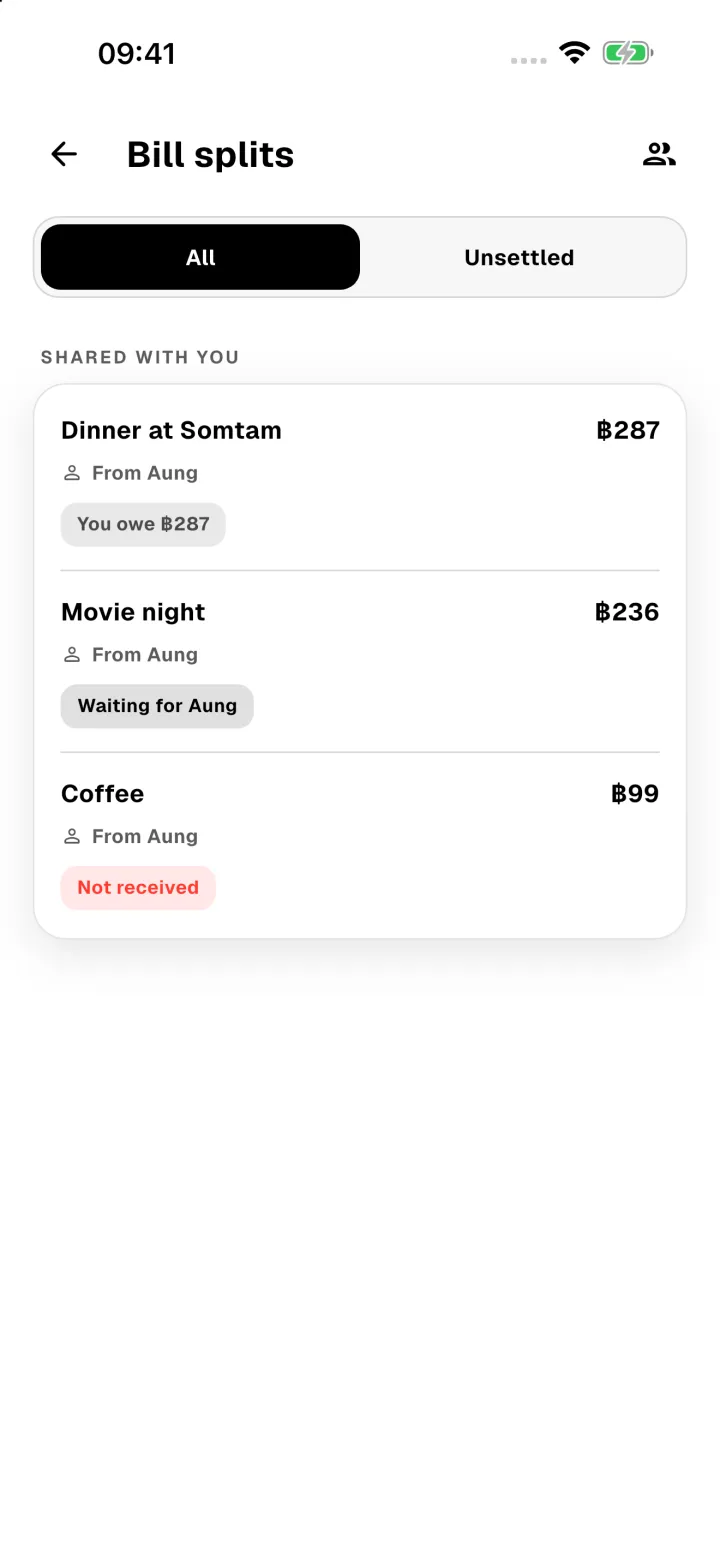
Tap the notification, or open Profile → Bill splits. Bills friends split with you are under Shared with you.
Open one to see your items and your share.
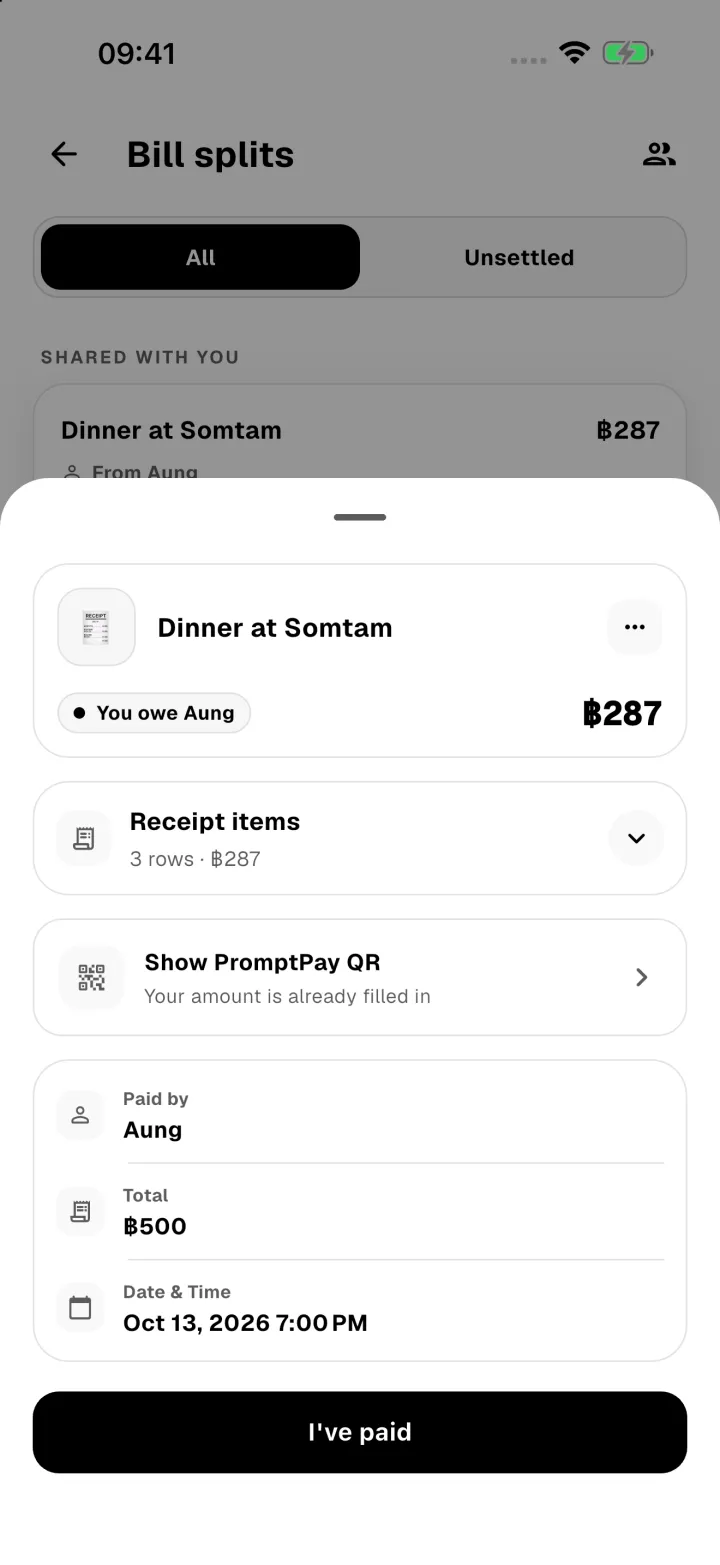
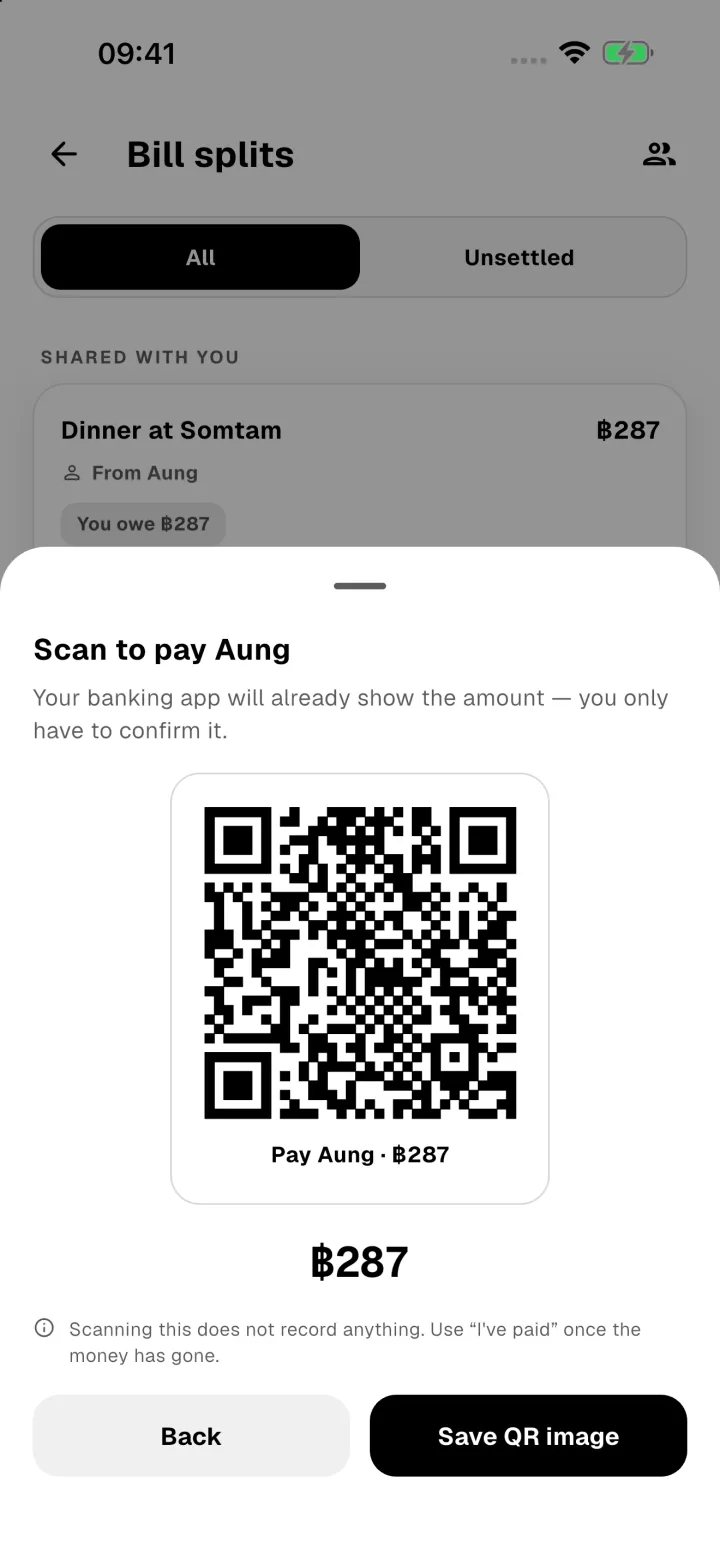
- Tap Show PromptPay QR to pay with your banking app. In Thailand the amount is already filled in.
- A phone can't scan its own screen, so tap Save QR image and scan it from your photos in your banking app.
- Once you've paid, tap I've paid, choose the wallet and category you paid from, and tap Record payment.
Panda records the payment as an expense in your wallet and asks your friend to confirm. Until they do, the bill shows Waiting for them.
Confirm a friend's payment
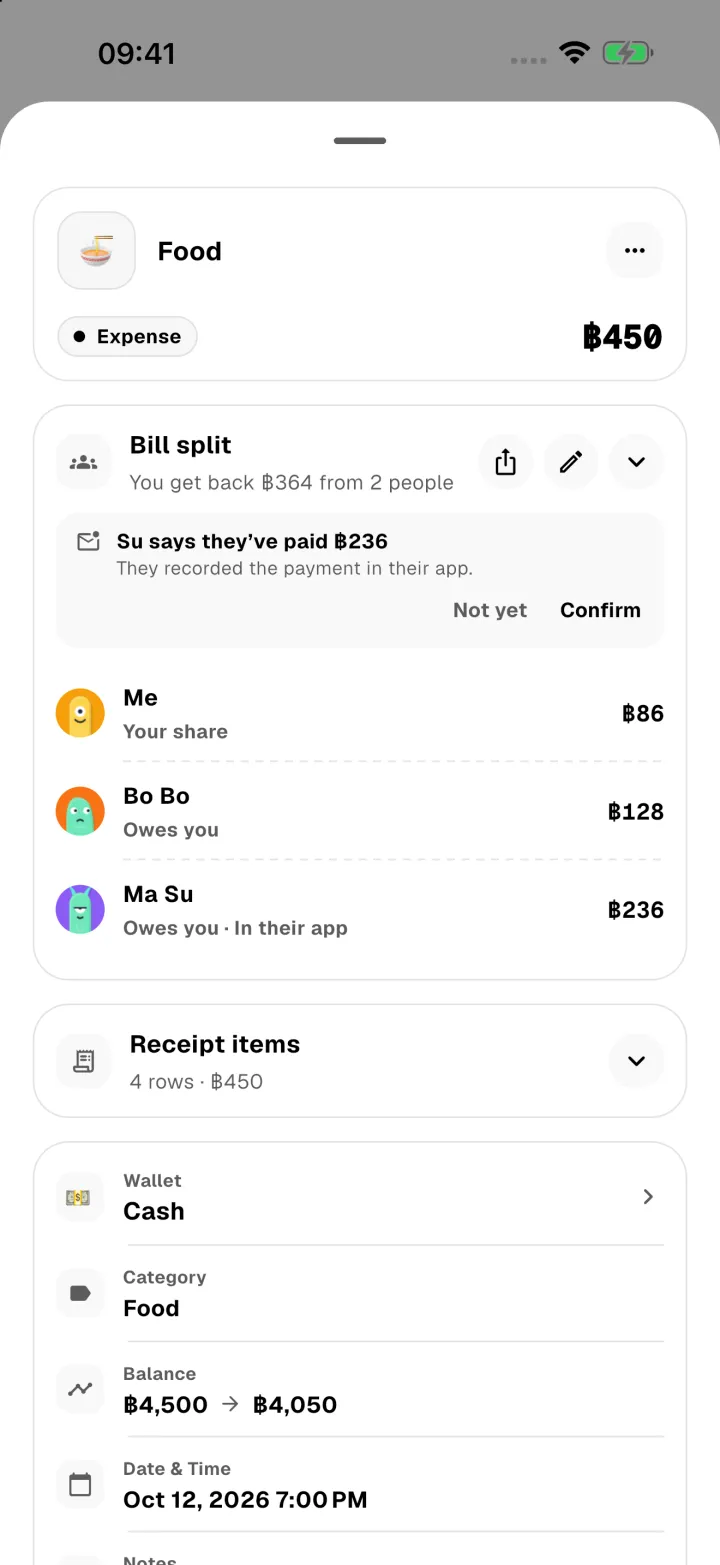
When a friend says they've paid, open the bill. The message at the top shows the amount they recorded. Tap Confirm to record the money coming back, or Not yet if it hasn't arrived.